Screen Mirroring Z - TV Cast
- 3.2
- Rating
- 10.00M
- Installs
- Free
- Price

 Analysis by App-foxy
I installed Screen Mirroring Z - TV Cast because I wanted a straightforward way to move what was on my phone onto a larger screen. The app sits in the Tools category and is made by EVOLLY GLOBAL. Its purpose is simple: connect a compatible phone and smart TV, then mirror the phone display so photos, videos, presentations, or other visible content can be seen from the sofa.
That simple goal is also the best way to judge it. This is not an app I would open for entertainment by itself. It is a bridge between a mobile screen and a television. When the connection works, it can save the trouble of passing a phone around or searching for a separate cable. When the connection does not work, the experience quickly becomes a search through TV menus, phone settings, and connection prompts.
From a phone in your hand to a picture on the TV
I find the most helpful way to judge this kind of mirroring is to start with a small, shared moment: one person has something on a phone, and several people want to see it without passing the handset around. That makes the television useful as a common screen, while the phone stays in the presenter’s hands. From there, I’ll look at the practical boundaries that keep a casual viewing session comfortable.
You May Also Like

 Pandora - Music & Podcasts
Pandora’s Music Is Easy to Start, but Harder to Recover
Pandora’s strength is its low-effort path from a seed to a station. Its weak spot is how much confidence it asks you to place in connection, setup, and quiet recovery.

 8 Ball Pool
 Is Built on Rivalries, Rematches, and Routine
A close look at the rivalries, rematches, shared routines, and unanswered safety questions that turn a quick pool match into a persistent mobile community.

 Samsung Music
’s Quiet Strength Is Playing What You Already Own
Its reach comes less from spectacle than from dependable access to a personal library. That simplicity is both the app’s strongest retention engine and its ceiling.

 AccuWeather: Weather Radar
AccuWeather Review: A Quick, Clear Forecast for Everyday Decisions
For everyday plans, the best forecast is the one you can understand quickly. AccuWeather makes rain timing, radar, and local conditions easy to act on, with a few trade-offs.

 Hill Climb Racing
Why Hill Climb Racing Still Turns Crashes Into One More Run
A tiny car, a bumpy hill and one more upgrade: Hill Climb Racing keeps resurfacing because its simple chaos makes every near-miss feel personal.

 AliExpress - Shopping App
AliExpress Makes Global Shopping Feel Personal, but Shoppers Bear the Risk
AliExpress turns a global marketplace into a pocket-sized discovery engine. Its reach is useful, its shopping loop compelling, and its trade-offs easy to miss.
More From Our News Desk
View All News


The starting point: choosing the right moment for mirroring
The most useful situation is one where the content already exists on the phone and I want everyone nearby to see it. A family member showing holiday photos, a colleague sharing a document in a meeting, or a friend playing a short video are all better examples than trying to replace a dedicated streaming app. The app is most convincing when the phone is the source and the television is simply the larger display.
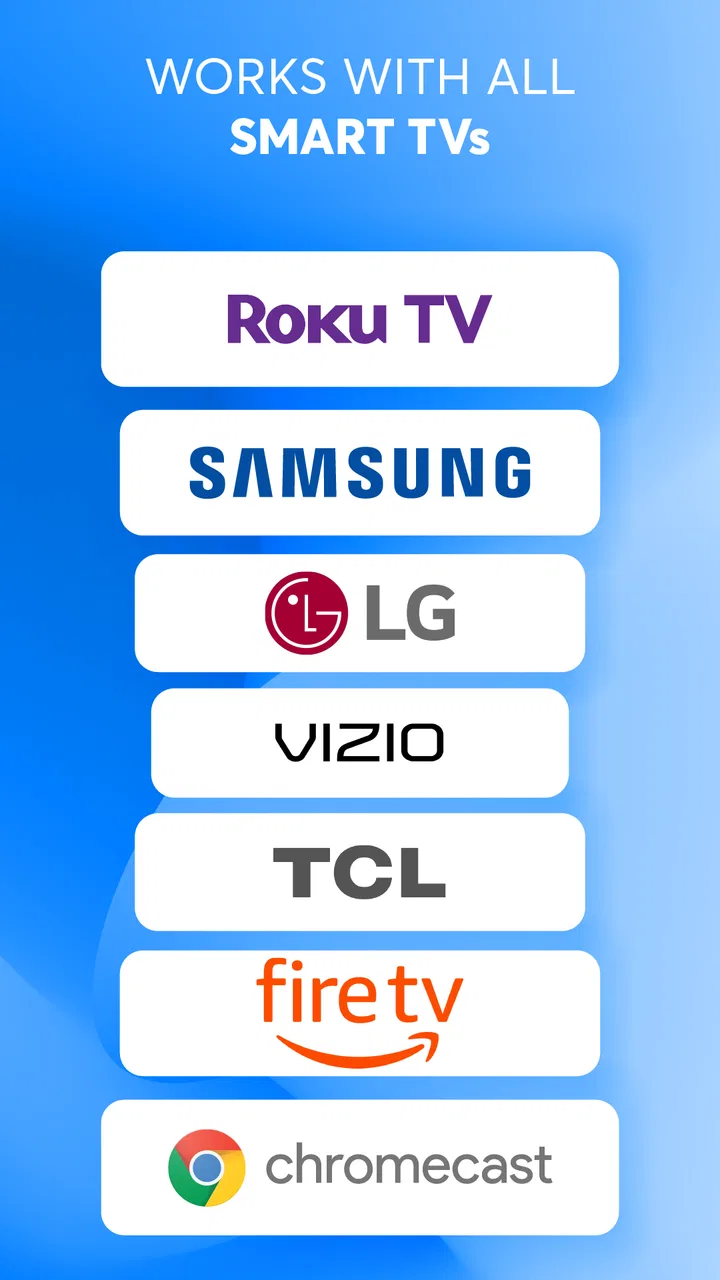
It supports mirroring to Samsung, Roku, LG, Sony, Vizio, and TCL smart TVs. That range makes it appealing if a household has one of those brands, especially when the built-in casting method is unfamiliar or behaves differently from one television to another. I still treat compatibility as a practical first check rather than assuming that every model from a listed brand will behave identically.
Because the app is free to install, it is easy to try before deciding whether it fits a particular television. It carries an Everyone content rating, so its presentation is aimed at a broad audience rather than a specialist technical user. The current version is 2.9.7, and the minimum requirement is Android 6.0, which keeps it accessible to many older Android phones.
Opening the app and preparing both screens
My first recommendation is to prepare the television before tapping through the phone. Turn on the TV, switch to the relevant smart functions, and keep the phone nearby. A screen-mirroring session depends on the two devices being able to find each other, so starting with the TV awake avoids the common mistake of blaming the app when the display is simply idle or on the wrong input.
Once the app is open, the workflow is easier to understand if I think of it as three stages: discover the television, approve or complete the connection, and then use the phone normally. The first stage is the handoff between devices. The phone is not merely sending a file; it is asking the television to reproduce what appears on the mobile display.
I would not begin an important presentation or family video by experimenting for the first time. A short test with an ordinary photo is more sensible. It reveals whether the TV appears, whether the connection completes, and whether the picture remains stable before there is an audience waiting.
Finding the TV and completing the handoff
The discovery step is where the app’s promise becomes practical. I look for the intended television, select it, and follow the on-screen connection process. The exact handoff can feel different depending on the TV brand and its own software, so patience matters here. If the television asks for confirmation, that request belongs to the TV side of the conversation, not necessarily to the phone app.
A useful habit is to keep the phone unlocked during the initial connection. If the phone goes to sleep while the devices are still negotiating, it becomes harder to tell whether the problem is discovery, approval, or the connection itself. I also keep the phone close to the TV during setup, then move it only after the image is visible.
This is one of the less obvious trade-offs of a mirroring tool: the phone remains part of the display chain. It is both the remote control and the source screen. If I open another app, rotate the phone, receive an interruption, or lock the display, what happens on the television can change. That makes the workflow flexible, but it also means the phone is not free for unrelated use while mirroring.
Using the connection for everyday content
After the TV shows the phone screen, I can navigate from the handset and let the larger display follow along. For photos, this feels natural because I can swipe through a gallery while people watch from a distance. For a document or a web page, the larger image makes it easier for several people to read, although small text still depends on the phone’s layout and the TV’s scaling.
A realistic example is a quiet evening when I have a set of pictures on my phone that I want to show relatives. Instead of handing the device to each person, I connect it to the living-room television, open the pictures, and move through them one at a time. The value is not that the app changes the photos; it removes the physical bottleneck of one small screen.
For short clips, the same approach can be convenient. I can start with the clip already stored or accessible on the phone and let the TV display it. I would still prefer a TV’s native app for a long film or a regular streaming session, because a dedicated TV application is usually designed around the television rather than keeping the phone involved throughout.
Managing the handoffs without losing control
The most important handoff is from phone navigation to shared viewing. I need to remember that every tap happens on the phone, even though the result appears elsewhere. This is easy when showing photos, but less comfortable when I need to type, scroll through a busy page, or switch between several sources.
Another handoff happens when more than one person wants to control the session. The person holding the connected phone effectively controls what everyone sees. If someone else wants to show a picture, the cleanest approach is usually to finish the current item, stop or disconnect in an orderly way, and then repeat the connection from the second phone. I would not expect this tool to behave like a shared multi-user presentation system.
There is also a social handoff: whatever appears on the phone may appear on the TV. Notifications, private messages, and unrelated screens can become visible. Before mirroring in a group, I close sensitive conversations and avoid leaving personal information open. This is a practical screen-sharing rule, but it is especially important here because the app reproduces the phone display rather than limiting the session to one selected file.
What the final result feels like
When the connection is successful, the result is immediate and easy to understand: the TV becomes a much larger version of the phone’s current view. That makes the app useful for spontaneous sharing, quick demonstrations, and situations where the television’s own software does not offer the content I need.
I like that the workflow does not require me to reorganize everything into a special library first. The phone remains the place where I choose the content, and the television becomes the viewing surface. For someone who already stores photos, notes, or short videos on a phone, that direct path is more useful than a complicated media-management system.
The app’s popularity suggests that this basic need is common. It has passed ten million installs, with an average rating of 3.2 from roughly thirty-two thousand ratings and about thirteen hundred written reviews. I read that combination as a sign of a tool that works well for some straightforward setups but can produce uneven experiences when device compatibility or connection conditions become difficult.
Where the flow breaks
The first likely break is discovery. If the TV does not appear, I would check the television’s smart features, confirm that both devices are ready to communicate, and restart the discovery attempt before changing several things at once. Troubleshooting works better when I isolate one step: first visibility, then approval, then picture stability.
The second break is a connection that starts but does not remain comfortable to use. Mirroring places more responsibility on the phone than ordinary casting. The phone has to stay available, and the experience can feel less polished if the display changes orientation or the user moves rapidly through content. For a single photo or brief demonstration, that may be acceptable. For a long session, it can become tiring.
The third break is content that is not well suited to mirroring. A phone screen may show a page clearly in the hand but make it awkward to read from across a room. Small controls, vertical scrolling, and constantly changing layouts are not transformed into a television-friendly interface. In those cases, I would choose the TV’s own application, a dedicated casting option, or a cable-based connection if reliable presentation matters more than convenience.
Performance can also depend on the surrounding setup. I would avoid judging the app during a crowded event or a moment when the home network is already struggling. A quick test in the exact room where I plan to use the TV is more informative than assuming that success elsewhere guarantees the same result.
How it compares with the usual alternatives
The closest alternative is a built-in mirroring or casting function already present on the phone or television. That route can be preferable when it is easy to find and consistently recognizes the TV, because it removes an extra application from the chain. Screen Mirroring Z - TV Cast becomes more attractive when I want one familiar tool to try across the supported TV brands rather than learning a different menu for every television.
Native TV applications are better for services that already have a dedicated version on the television. They usually offer controls designed for a remote and do not require the phone to remain the central controller. I would choose them for regular viewing, while I would reach for this app when the material is personal, local to the phone, or unavailable in the TV’s own app selection.
A physical cable is the more dependable choice for a formal presentation when I cannot afford discovery problems or interruptions. It is less convenient, requires the right adapter, and reduces freedom of movement, but it avoids some of the uncertainty of a wireless handoff. The app is a better fit for casual sharing where convenience outweighs the need for a guaranteed, presentation-grade connection.
Dedicated casting from an individual video or photo app can also be cleaner than mirroring the entire display. It may let the TV handle playback while the phone acts as a controller. Screen Mirroring Z - TV Cast is broader in the sense that it can show whatever is visible on the phone, but that breadth is also why private notifications, awkward layouts, or phone interruptions can enter the session.
Who should use it and who should skip it
I would recommend this app to someone who wants a free starting point for showing phone content on a compatible Samsung, Roku, LG, Sony, Vizio, or TCL smart TV. It is particularly practical for occasional household use: photos, quick demonstrations, short clips, and content that does not justify buying hardware or setting up a more elaborate media system.
I would also consider it for an older Android phone that meets the Android 6.0 requirement, provided the television is compatible and the user is comfortable following a connection workflow. The app’s broad age rating and simple purpose make it approachable for family use, although younger or less technical users may still need help with the TV-side approval step.
I would skip it if my main goal were uninterrupted long-form streaming, competitive gaming, or a high-stakes presentation. Those activities benefit from a dedicated TV app, a purpose-built casting path, or a wired connection. I would also think twice if I need to use the phone privately while the TV continues showing something else, since mirroring ties the visible result closely to the phone’s current screen.
Free to try, but watch the upgrade path
The app is free, which lowers the barrier to testing it with a particular television. It also includes in-app purchases ranging from $1.99 to $32.99 per item. I would treat that as a reason to inspect the purchase screen carefully before confirming anything, especially if I only need occasional mirroring and the free experience already covers my use.
In my view, the right question is not whether every household needs this app. The better question is whether it solves a specific handoff: phone content needs to reach a compatible TV quickly, without first moving that content into another service. If that is the problem, a free trial is reasonable. If the real need is stable television playback with remote-friendly controls, another route will probably feel better over time.
My practical verdict after following the whole workflow
Screen Mirroring Z - TV Cast is useful because it focuses on a familiar problem and keeps the phone at the center of the process. I found its strongest use in short, informal moments where a larger screen matters more than a perfect media interface. The supported TV brands give it a useful reach, and the free entry point makes experimentation easy.
Its weaknesses come from the same design choice. Full-screen mirroring is flexible, but it exposes the session to phone notifications, orientation changes, unsuitable layouts, and the need to keep controlling the phone. Connection trouble can also turn a quick share into a small troubleshooting task. Those are not reasons to dismiss it; they are reasons to match it with the right kind of job.
My recommendation is to use it as an occasional bridge, not as a replacement for every casting method. Test it with a photo before relying on it for an audience, keep private notifications out of view, and choose a native TV app or wired setup when reliability and long viewing sessions matter most. For casual phone-to-TV sharing, it earns a place in my toolkit, as long as I remember that the final result depends on both the app and the television taking part in the handoff.
FAQs for Screen Mirroring Z - TV Cast
01What is Screen Mirroring Z - TV Cast used for?
Screen Mirroring Z - TV Cast is designed to display content from a compatible Android or iOS device on a larger screen, such as a smart TV, streaming device, or computer. It can be useful for showing photos, videos, presentations, websites, and other supported content. The exact features available may depend on your phone, TV model, operating system, and the connection method being used.
02How do I connect Screen Mirroring Z - TV Cast to my TV?
In most cases, your mobile device and television need to be connected to the same Wi-Fi network before starting the app. Open Screen Mirroring Z - TV Cast, allow the requested permissions, and select the TV or receiver detected by the application. Follow the on-screen instructions to establish the connection. If the device does not appear, check the network, restart both devices, and confirm that casting or screen mirroring is enabled on the TV.
03Does Screen Mirroring Z - TV Cast work with every smart TV?
The application may work with many popular smart TVs and compatible streaming receivers, but universal compatibility cannot be guaranteed. Support can vary according to the television brand, model, operating system, network configuration, and available casting technology. Before downloading, check whether your TV supports screen mirroring, web-based casting, or the relevant receiver protocol. Some older televisions may require an additional streaming device or adapter.
04Can I mirror movies, photos, games, and live content with the app?
Screen Mirroring Z - TV Cast can be useful for sharing photos, videos, web pages, and other visual content, although the experience depends on the source and destination device. Some protected streaming services may block mirroring because of copyright restrictions, resulting in a black screen or unavailable playback. Games may also show noticeable delay, so the app is generally better suited to casual viewing, presentations, and media sharing than competitive gaming.
05Is Screen Mirroring Z - TV Cast free to use, and are there any limitations?
The app may offer basic functionality at no cost while reserving certain features for a premium plan, subscription, or in-app purchase. Free use can also include advertisements, connection limits, reduced quality, or restrictions on particular casting tools. Pricing and available features may change over time, so review the current store listing before subscribing. Also remember that mobile data usage, supported devices, and Wi-Fi quality can affect the overall experience.
Pros
- Simple setup for casting your phone screen to compatible TVs.
- Supports wireless streaming without requiring extra cables or adapters.
- Useful for sharing photos
- videos
- presentations
- and apps on a larger display.
- Clean interface makes core casting controls easy to find.
- Works well for casual home entertainment and quick demonstrations.
Cons
- Performance depends heavily on a strong
- stable Wi-Fi connection.
- Noticeable delay can make it unsuitable for fast-paced gaming.
- Some TV models may require additional permissions or manual pairing.
- Free features may be limited by ads or premium upgrade prompts.
- Audio and video quality can vary between devices and casting methods.

Screen Mirroring Z - TV Cast
Gallery